Allows you to manage your commissions to pay reps.
Group Set Up.
Click Initials in top right corner, then Group Settings.
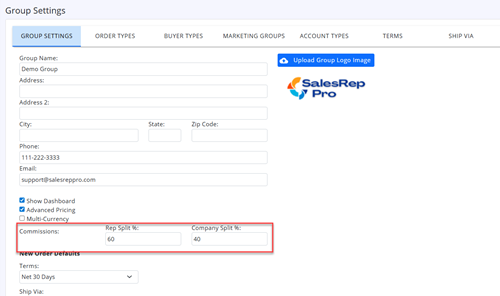
Set the Rep and Company Split Percents. These should total to 100%
Click Save button.
Vendor Set Up.
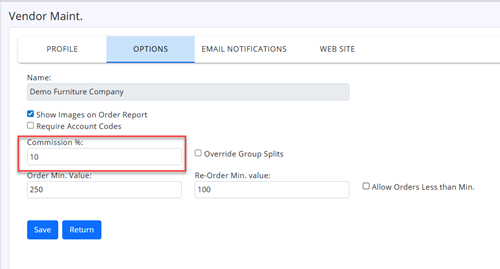
Edit vendor, and go to Options tab.
Enter Vendor Commission %.
Click Save button.
To override Group commission splits, check the Override Group Splits check box
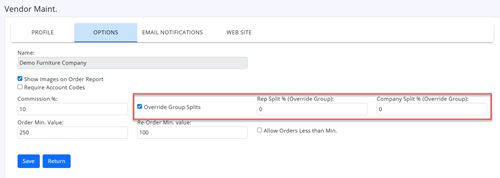
Enter the Rep and Company Spliet Percents, for this vendor
Click Save button.
Under Commissions on left hand menu, click on Invoice List.
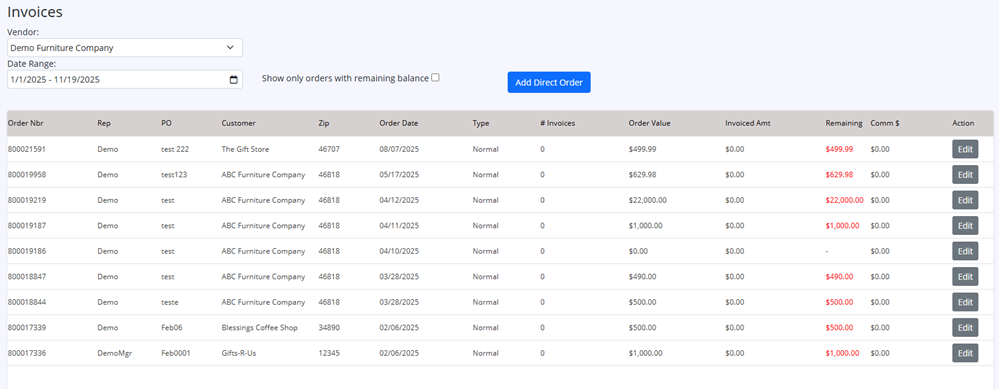
Select vendor from Vendor drop down.
Select Date Range. Defaults to past 30 days.
Check the "Show only orders with remaining balance" to only see invoices with a remaining balance.
You can add Direct Orders from here by clicking the "Add Direct Order" button.
Click Edit action button, to edit and add invoices to an order.
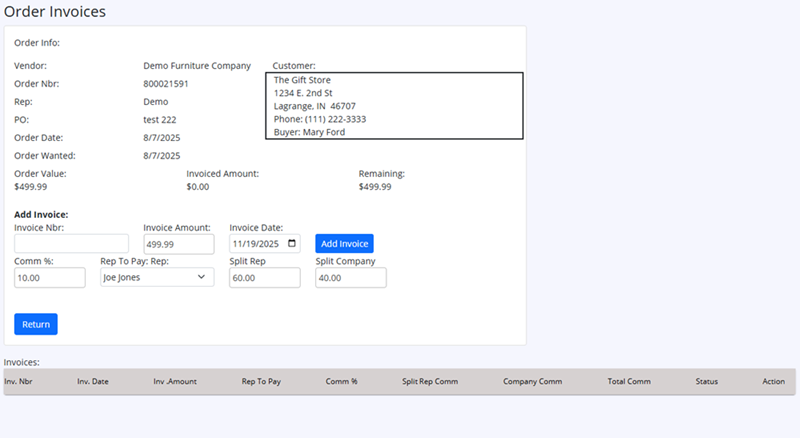
To add invoice to order, enter Invoice Nbr, amount, and invoice date and click "Add Invoice" button.
The default commission information will show, and can be overridden for this order if needed.
Click "Return" button to return to the Invoice List page.
Under Commissions on left hand menu, click on Check List.
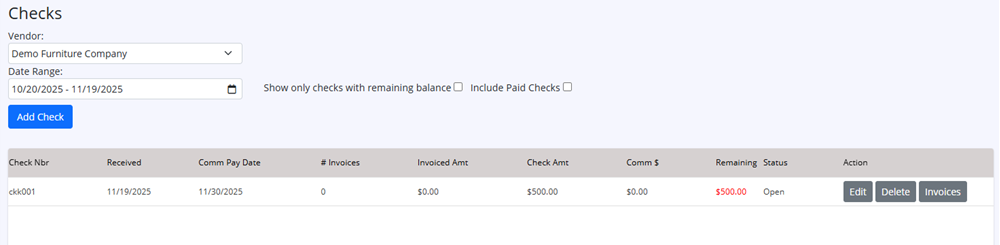
Select vendor from Vendor drop down.
Select Date Range. Defaults to past 30 days.
Check the "Show only checks with remaining balance" to only see checks with a remaining balance.
Check the "Include Paid Checks" to include paid checks in list.
Click Add Check button to add a new check for vendor.
Click Invoices action button to Assign Invoices to check.
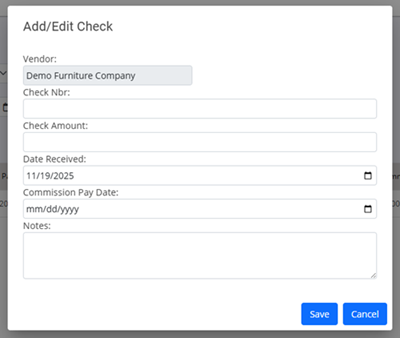
To add check, enter Check Nbr, amount, and Date Received, Commission Pay Date and click "Save" button.
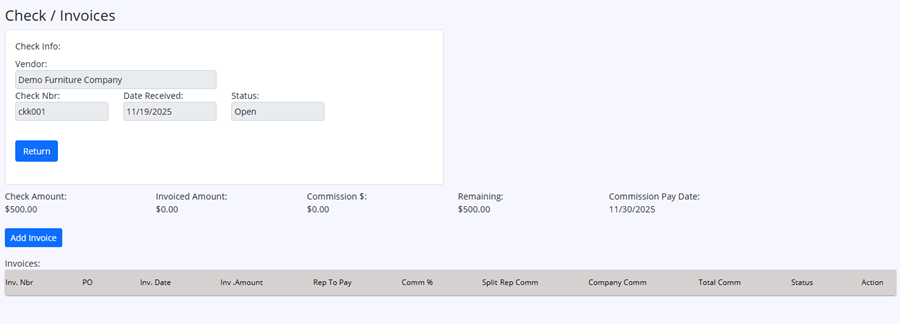
To add invoice to Check, click Add Invoice button, for Invoice Search Dialog
Click "Return" button to return to the Check List page.
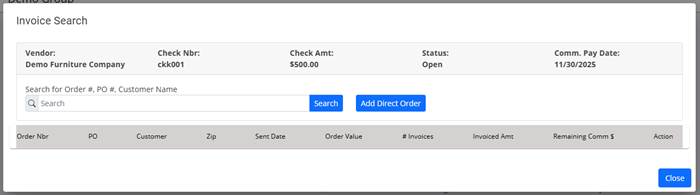
Enter SRP Order Nbr, PO Nbr, or any part of customer name, and click "Search" button, to show list of available orders.
You can add new Direct Order by clicking "Add Direct Order" button.
If order is not in SRP, you can add Direct Order from here.
Click "Close" button to close dialog.
After clicking Search button, you will see list of matching orders:
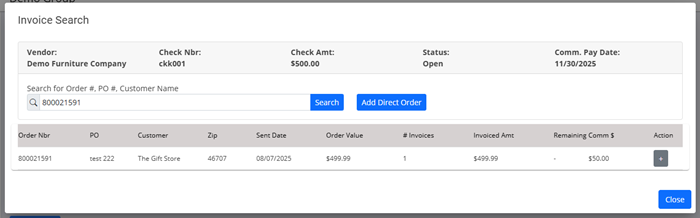
Click "+" action button to Post invoice to check, and view Commision Entry Dialog.
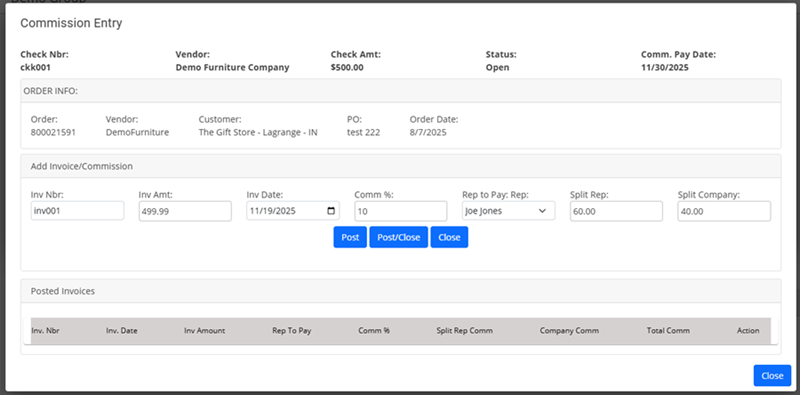
This dialog will allow you to post invoices to check for order.
When initially coming into dialog from invoice search, you will see first unpaid invoice by default.
You may override any of the commission fields as needed.
If no invoices are found for order, you can enter the invoice nbr, amnount and Inv. Date to add NEW invoice to order.
You may override any of the commission fields as needed.
Click "Post" button or "Post/Close" button to post invoice to check.
Use the Post button, if you have additional invoices to add for this order.
Click "Close" button to close dialog.
Under Commissions on left hand menu, click on Pay Reps.
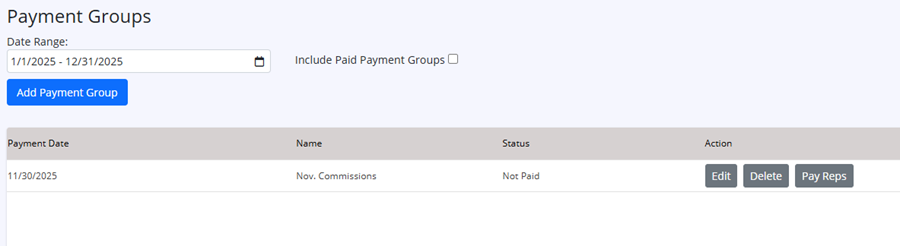
Select Date Range. By default this will show current year, un-paid Payment Groups.
Check the "Include Paid Payment Groups" to include paid Payment groups in list.
Click Add Payment Group button to add a new Payment Group.
Click Pay Reps action button to assign checks to pay reps.
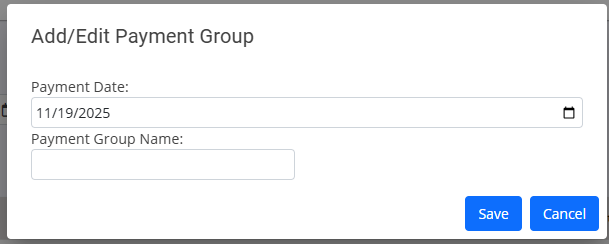
To add Payment Group, enter Payment Date, Payment Group Name and click "Save" button.
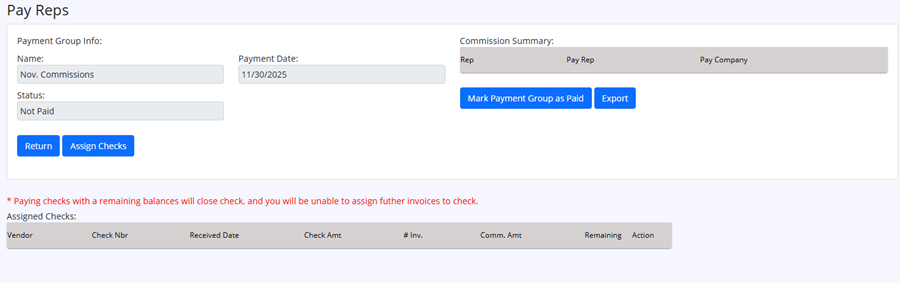
This page will allow you to assign checks to Payment Group
You will see Commission Summary of assigned checks in top right of page.
Click Assign Checks button to pick checks to assign to Payment Group.
When all checks have been assigned to Payment Group, and you are finished, Click "Mark Payment Group" as Paid button.
Click "Return" button to return to the Payment Group List page.
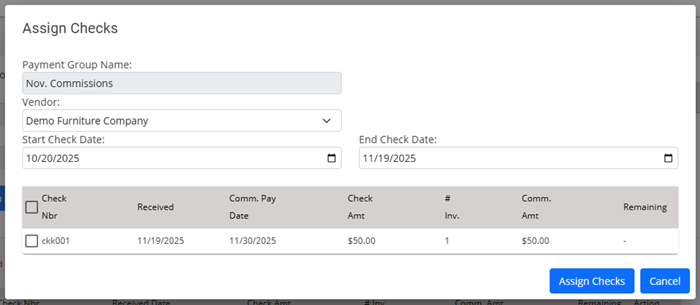
This dialog will allow you to select checks to assign to Payment Group.
Select vendor from Vendor drop down.
Select date range. This will default to past 30 days. If needed, you can adjust date range to find checks to select.
Check the check boxes next the checks you wish to include in the Payment Group
Click "Assign Checks" button, to assign selected checks and close dialog.