Release 06/28/2026 Last updated: 06/28/2026
Release Highlights:
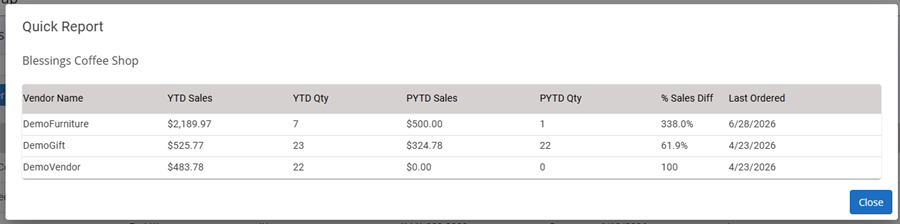
| 1) Customer List - Quick Report Action | Added new Quick Report (Sales History) for customer |
|---|---|
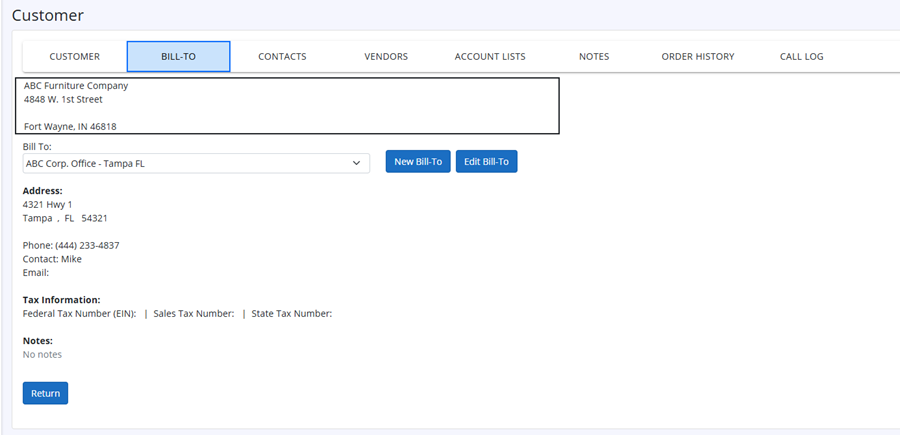
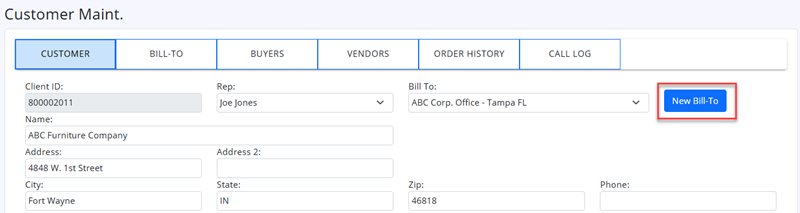
| 2) Customer Edit - Bill-To tab | Added "New Bill-To" and "Edit Bill-To" buttons. |
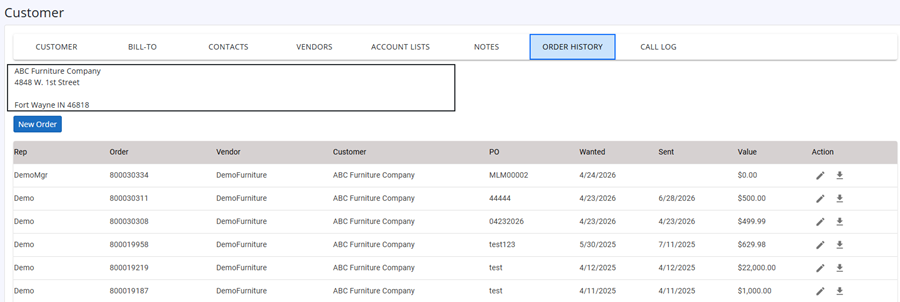
| 3) Customer Edit - Order History tab | Added "New Order" button. In Order list, added Edit order and download actions. |
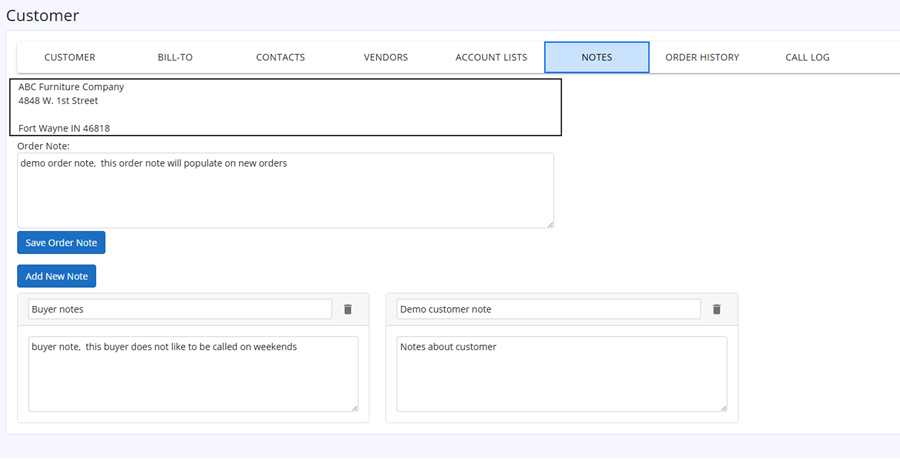
| 4) Customer Edit - Notes tab | Added Order Note, and unlimited customer notes |
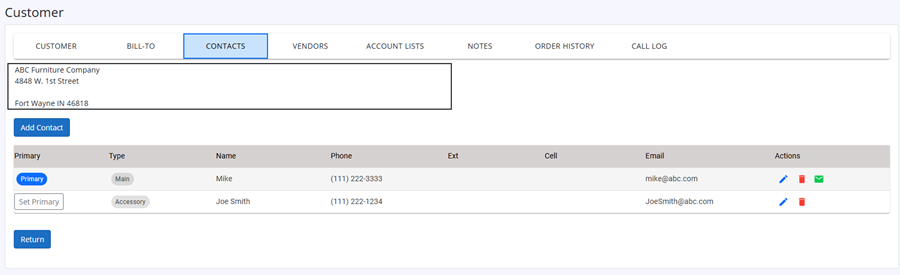
| 5) Customer Edit - Contacts tab | Buyers are now called Contacts. Added ability for unlimited contacts |
| 6) B2B User List | Added new B2B User List - allows viewing all your B2B customers and stats |
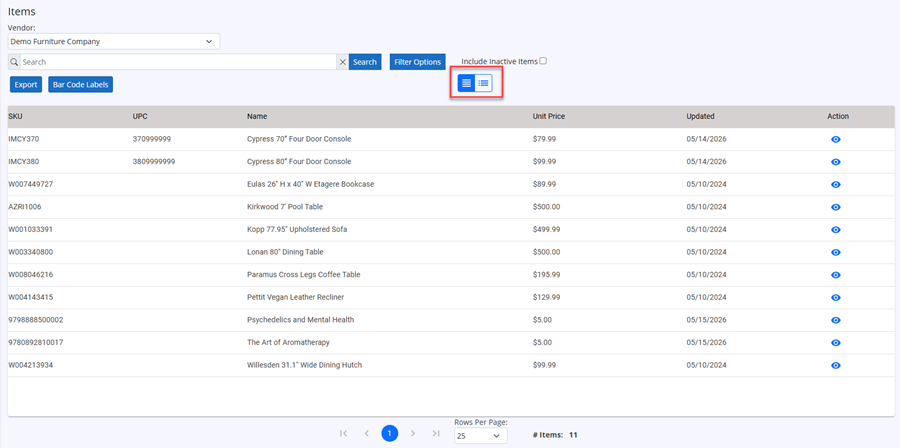
| 7) Item List | Added ability to view item list with or without items images. Added new Bar Code Labels |
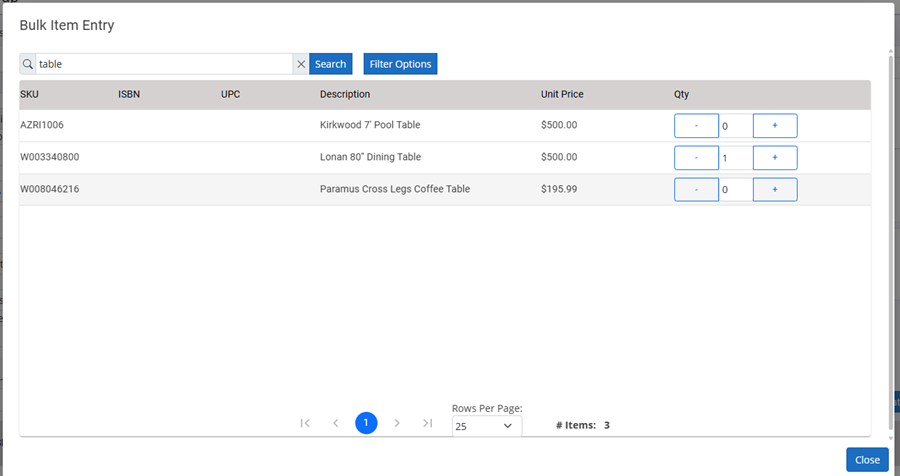
| 8) Order Entry | Added new Bulk Add button. New Bulk item add dialog. |
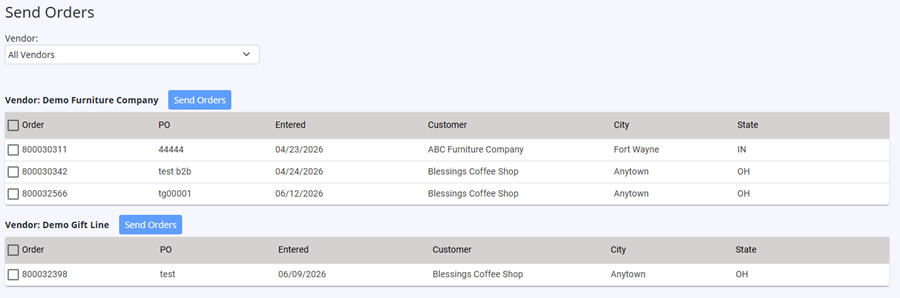
| 9) Order Send | Added new Order Send page (Old page will be removed soon) |
Quick Report (Customer Sales History)
Will show sales history by vendor for customer.
Customer Edit - Bill-To tab
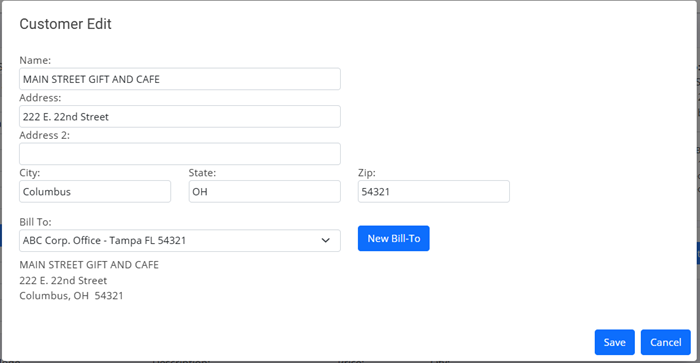
You can now add new Bill-To and Edit existing Bill-To while viewing customer
Customer Edit - Order History tab
You can now add new order while viewing the Customer Order history. Also can now edit/view order and download order.
Customer Edit - Notes tab
New Order Note. The Order Note, will auto populate to new order in the Special Instructions
Added ability to have unlimited customer notes.
Customer Edit - Contacts tab
Add new contact with Add Contact button.
Set Primary contact with the Set Primary button (if there is more than one contact)
If your group is set up for B2B web site, you can invite customer to B2B site, by clicking the green envelope action icon.
B2B User List
Item List - Image viewing
Use toggle buttons (highlighted below) to switch between viewing item list with images or not.
Added new Bar Code Labels button. To print bar code labels
Order Entry - Bulk Item Add
Added new method for adding items to order. Click new Bulk Add button.
This new dialog will allow searching for items, and entering qty desired. Also can use +/- buttons to change order qty.
Order Send
Added new Order Send page
This new order send, will allow selecting all orders for a vendor, or individual orders (that you do not wish to send yet)