
Tip
You may enter any part of customer name, city, state, phone, buyer name to search for a customer.
Overview of your rep groups, top items, new customers.
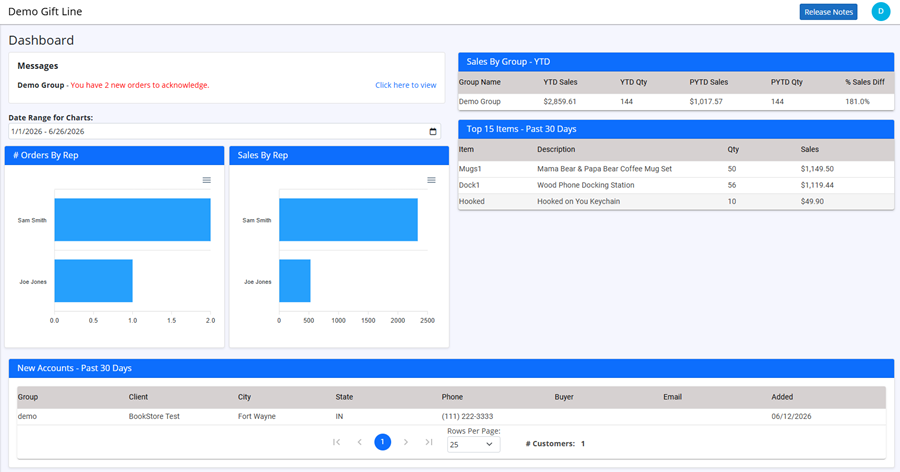
Messages section will show count of new orders sent by reps, that have not been acknowledged.
Click link to view order list of new orders that need acknowledged.
Allows you to maintain your vendor information.
Click on Vendor from the left hand menu.
Profile Tab:
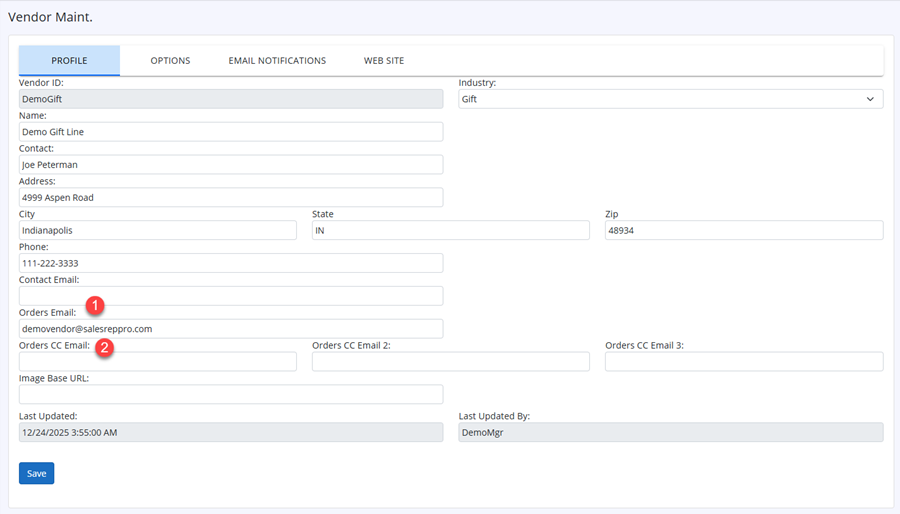
| 1) Orders Email | Enter email address for where you want rep orders to email to when rep sends orders. |
|---|---|
| 2) Orders CC Email | Enter addtional email addresses on the CC fields to send rep orders to. |
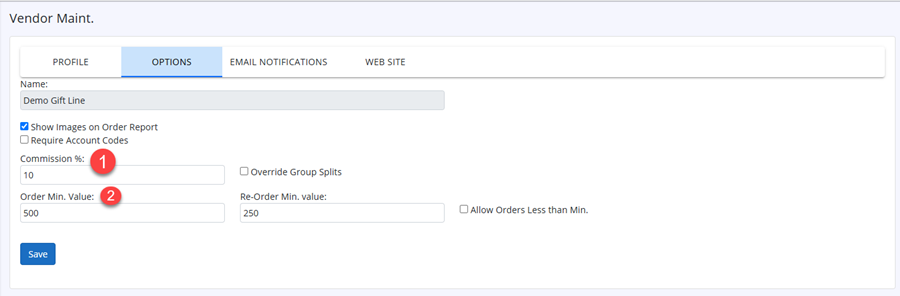
Options Tab:
| 1) Orders Email | Enter email address for where you want rep orders to email to when rep sends orders. |
|---|---|
| 2) Orders CC Email | Enter addtional email addresses on the CC fields to send rep orders to. |
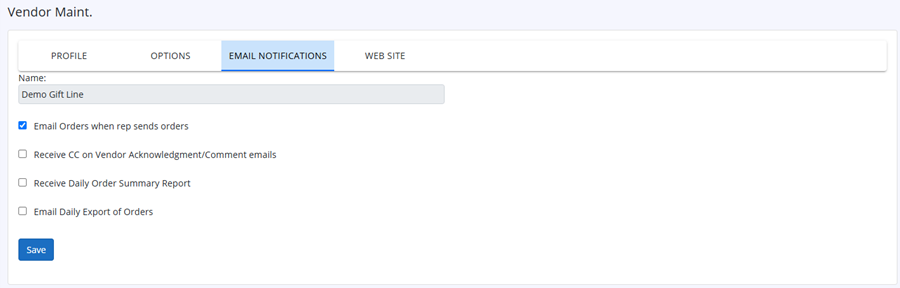
Email Notifications Tab:
| 1) Orders Email | Enter email address for where you want rep orders to email to when rep sends orders. |
|---|---|
| 2) Orders CC Email | Enter addtional email addresses on the CC fields to send rep orders to. |
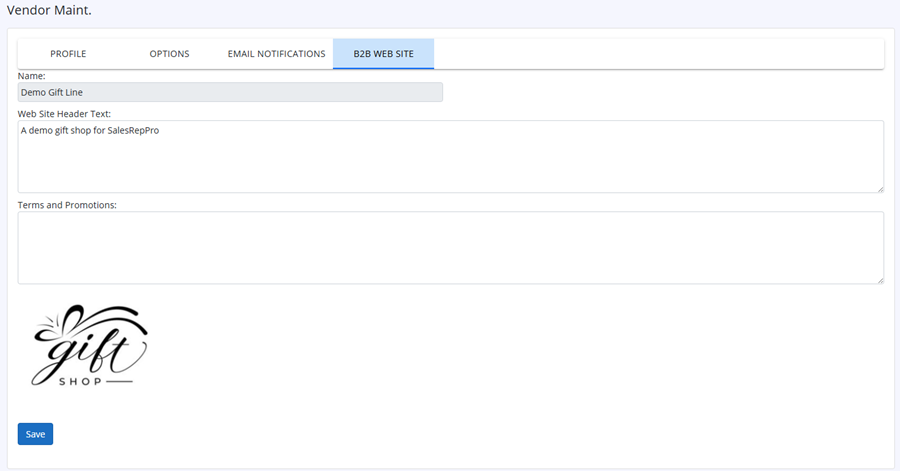
B2B Web Site Tab:
| 1) Orders Email | Enter email address for where you want rep orders to email to when rep sends orders. |
|---|---|
| 2) Orders CC Email | Enter addtional email addresses on the CC fields to send rep orders to. |
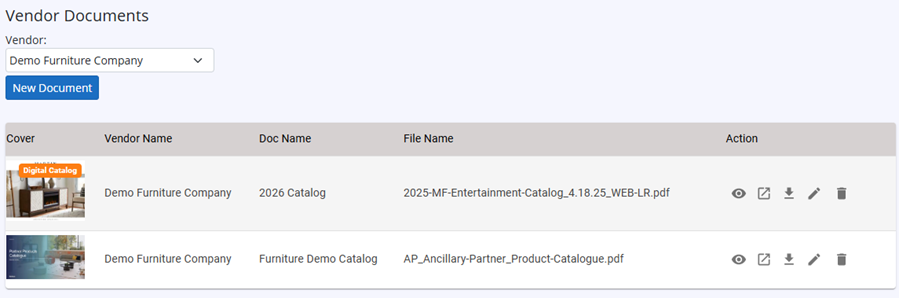
Click on Vendor Documents from the left hand menu.
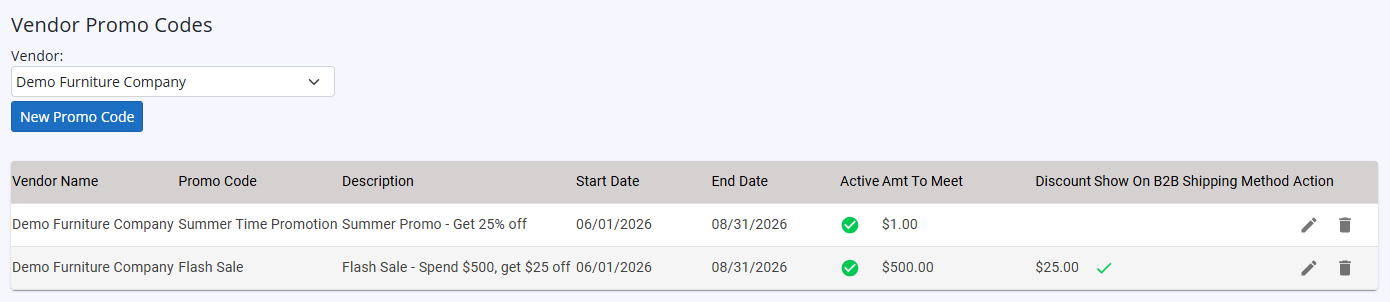
Click on Promo Codes from the left hand menu.
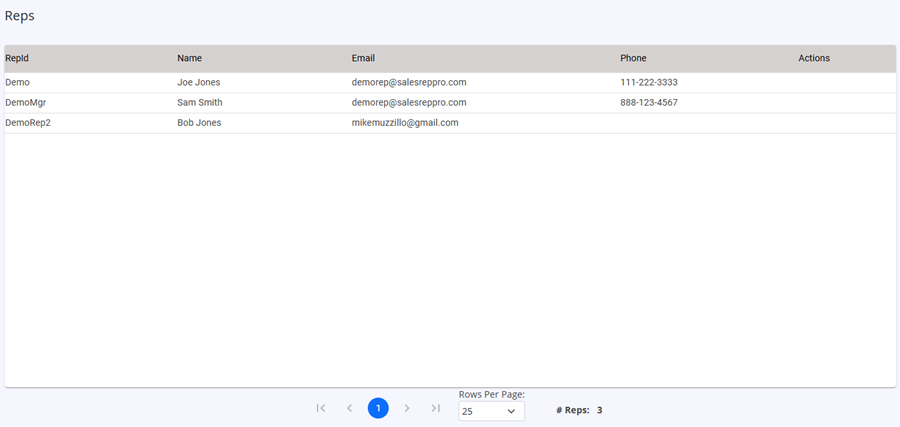
Allows you to view list of Sales Reps.
Allows you to view list of Customers (Ship-To's)
Click on Customer List from Customers drop down, in left hand menu.
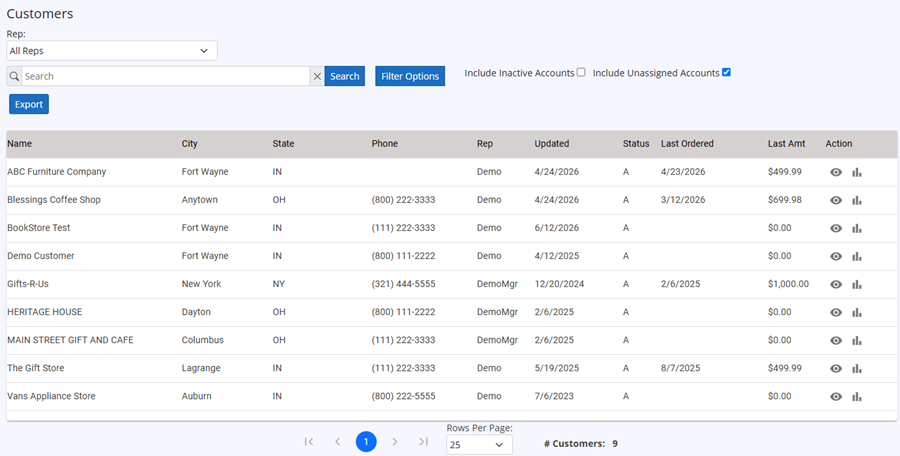
To search for a customer, enter search term in Search text box and click Search button. Check Include Inactive Accounts, to include all accounts.
You may enter any part of customer name, city, state, phone, buyer name to search for a customer.
To View Customer detail, click on the View action.
To View Quick Report (Sales History) for customer, click on the Quick Report action.
Click on Bill-To List from Customers drop down, in left hand menu.
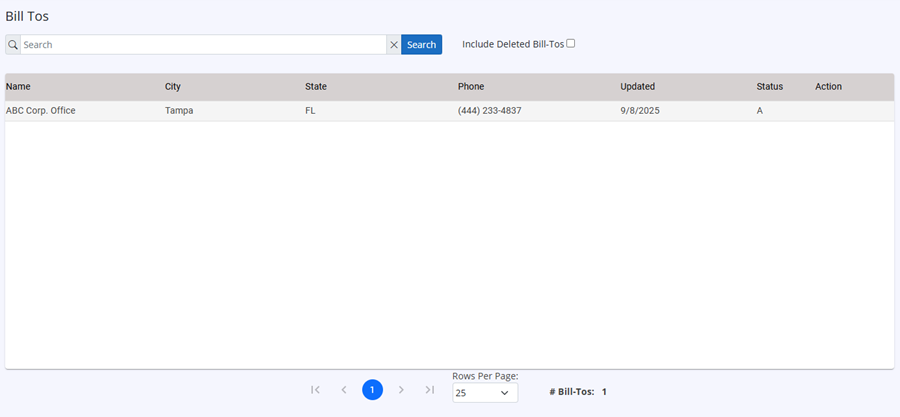
To search for a Bill-To, enter search term in Search text box and click Search button.
You may enter any part of Bill-To name, city, state, phone to search for a Bill-To.
Click on Item List from left hand menu.
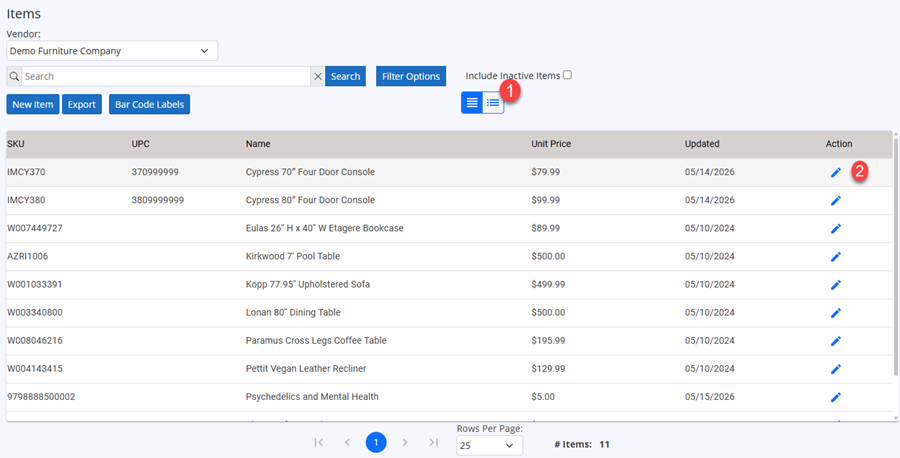
To search for an item, enter search term in Search text box and click Search button. Check Include Inactive Items, to include all items.
You may enter any part of item sku, description, upc code, isbn to search for an item.
Click on New Item button, to add a new item.
| 1) List View Mode | Click to view item list with images or not. |
|---|---|
| 2) Edit Action | Click to view or edit item information. |
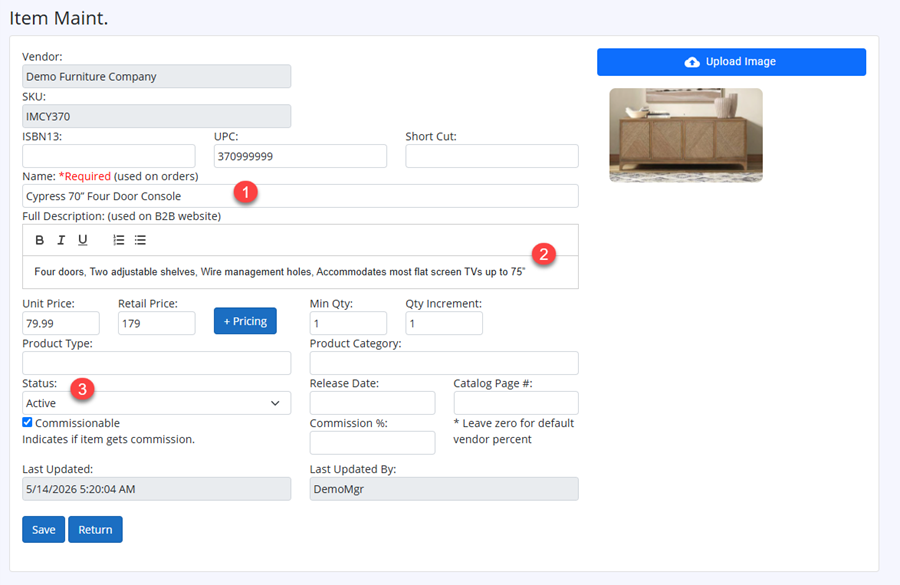
To view larger image, click on the item image.
To view Advance Pricing (including Qty Break prices), click Advance Pricing button
| 1) Name | Enter Item Name (Short Description), this value is what shows on Order Entry for reps, and Order reports |
|---|---|
| 2) Full Description | Enter Item full description. Will be used on B2B site, on item view to customers |
| 2) Status | Set this value to Active or In-Active. In-Active items will not show to reps or customers to order. |
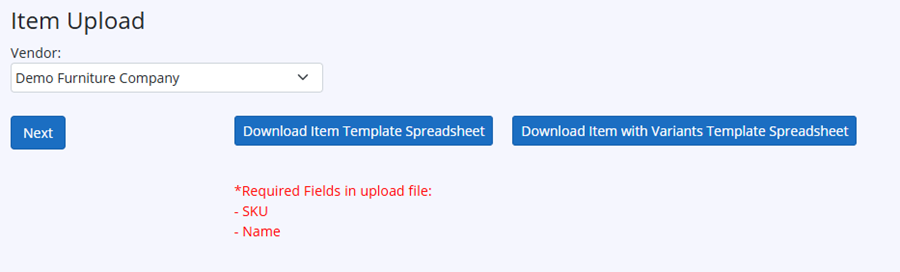
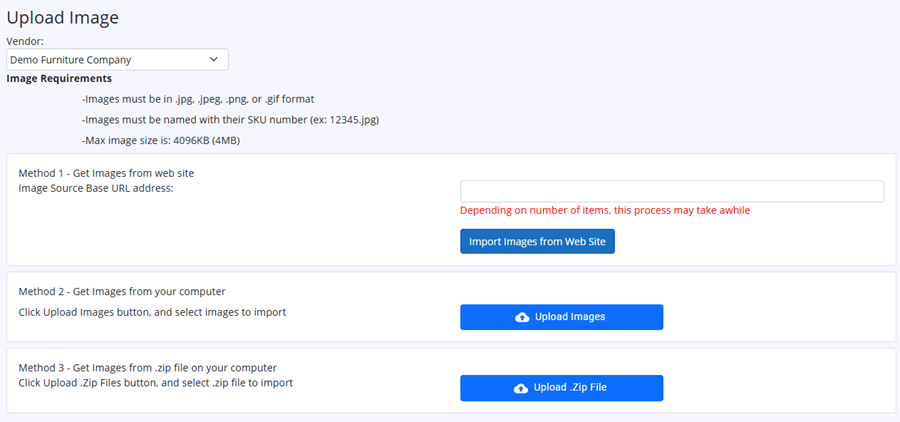
Click on Order List from Orders dropdown in left hand menu.
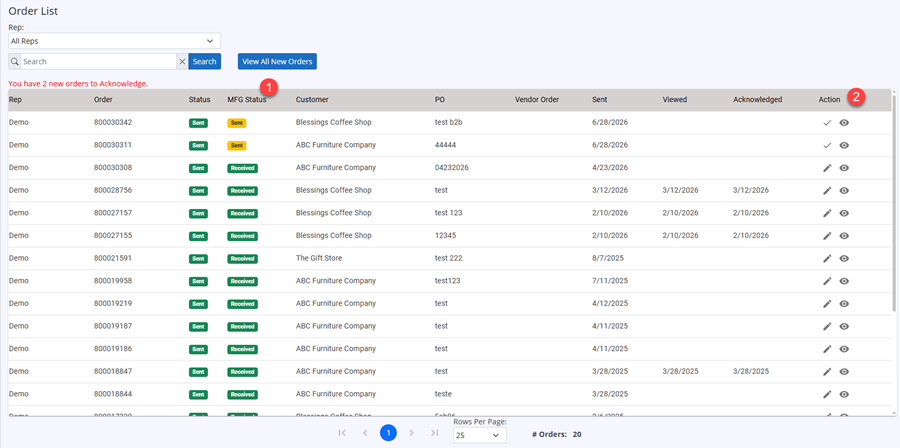
Message in red, will indicate how many orders that need to be acknowledged.
Click View All New Orders button, to view just all the new orders, that need acknowledged.
To Acknowledge Order, click Acknowledge button next to order.
| Ready To Send | Order is ready to send to vendor. |
|---|---|
| Sent | Order has been sent to vendor. |
| Hold | Order is placed on Hold. And will not be sent to vendor |
| Mark as Sent | Order is Marked as Sent to vendor, will not send to vendor. Use this for orders you just want a record of order but will not send to vendor. |
| Not Sent | Order has not been sent to vendor yet. |
|---|---|
| Sent | Order has been sent to vendor, but vendor has not viewed order yet. |
| Received | Order has been viewed by vendor. |
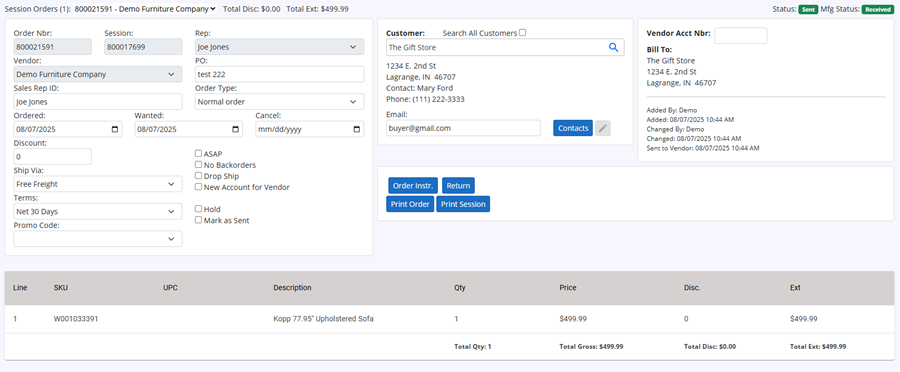

Select Export Format from drop down, Enter Sent Date to view, and click Search button.
Click Export button, to export the orders.
Zip file will download to you with order files.
| Standard CSV Format | Standard Comma Separated text file (.csv) |
|---|---|
| Syncware CSV Format | Standard Comma Separated text file in Syncware format (.csv) |
| Fishbowl Inventory System API | Send orders to Fishbowl. Contact SRP support if you use Fishbowl |
Click on Order Forms from Orders dropdown in left hand menu.

Select Vendor from drop down, to view orders forms for this vendor.
Click on Add Order Form to add new Order Form
Click on Edit button, next to Order Form you wish to edit

Fill out info for order form.
To Save Order Form info, click on the Save Button.
To Start another new Order Form, click the Add New button
Start typing sku or description, and select item from dropdown of items
then tab to qty field and enter order qty.
Qty will default to Min Order Qty